6. Route Management
6.1 Function Description
Click "Basic Management-Route Management" in the menu bar to enter the corresponding interface, you can view the details of the management coordination route, time distance map, and each intersection scheme.
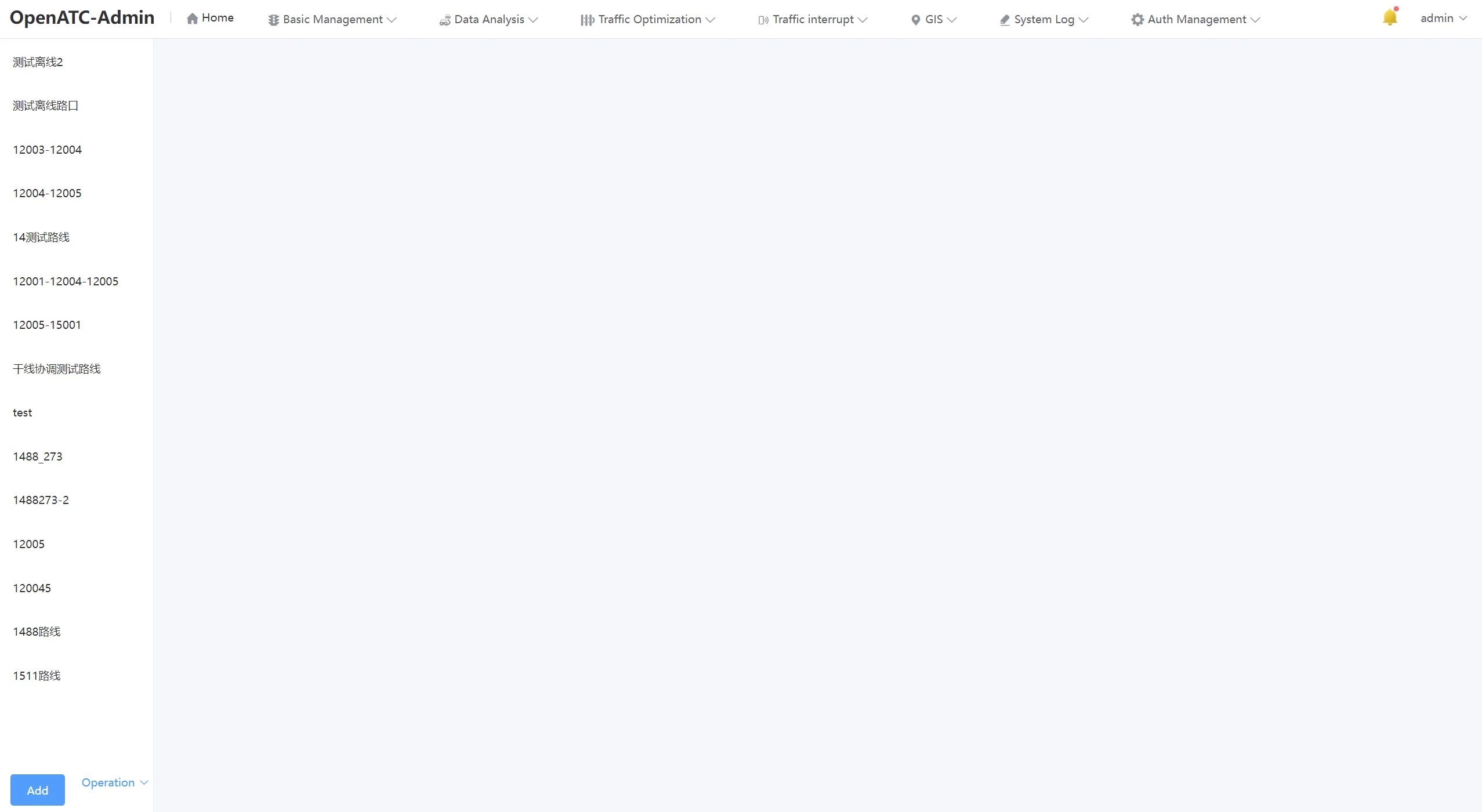
6.1.1 Route List
Click the "Add" button below to add a new coordination scheme. Click the "Operation" button to edit and delete the existing coordination scheme.
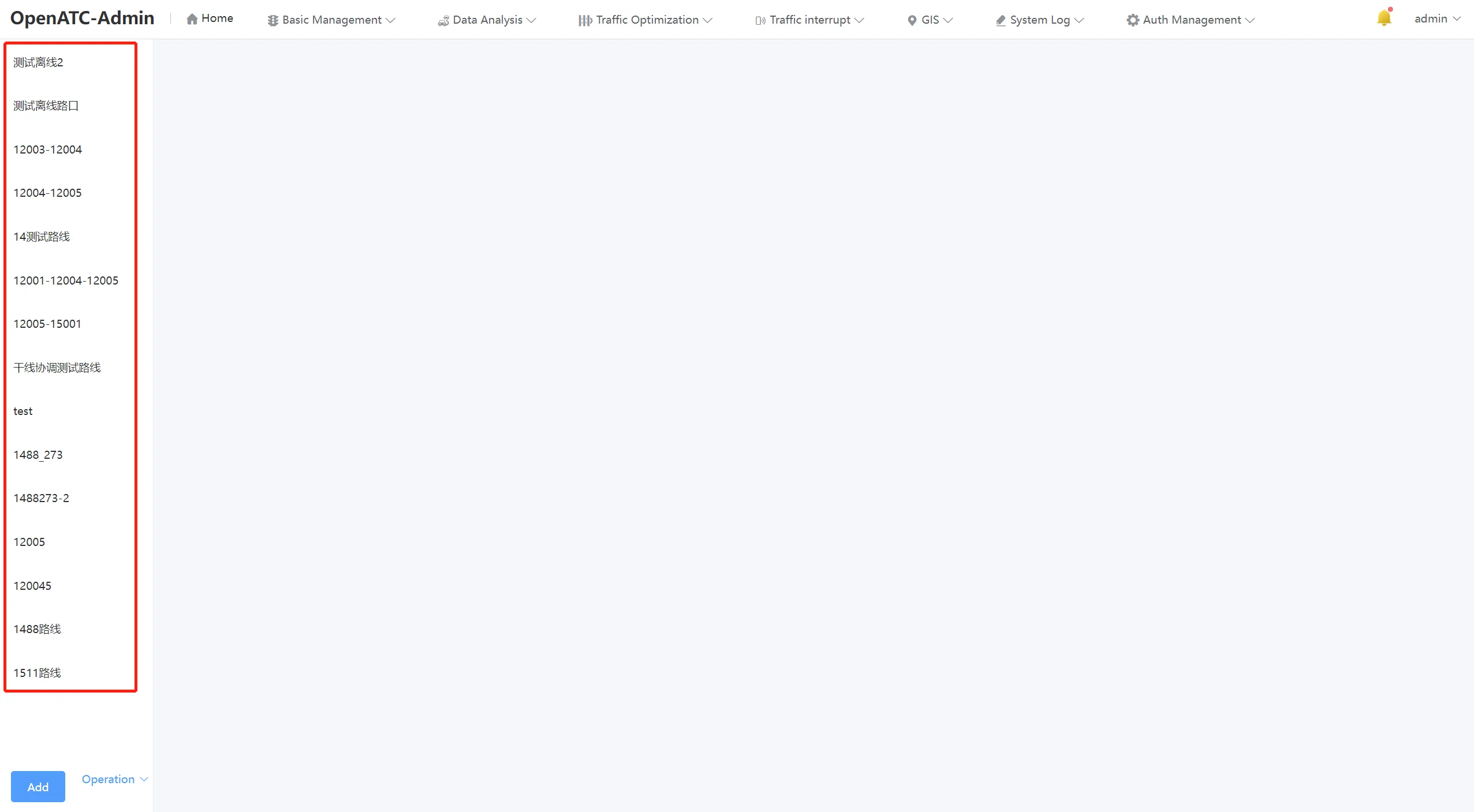
6.1.2 Pattern Interface
The Scheme Parameters screen allows you to view and edit scheme information for each intersection. This screen displays the intersection ID, selected scheme type, phase difference and period of the existing coordination scheme.
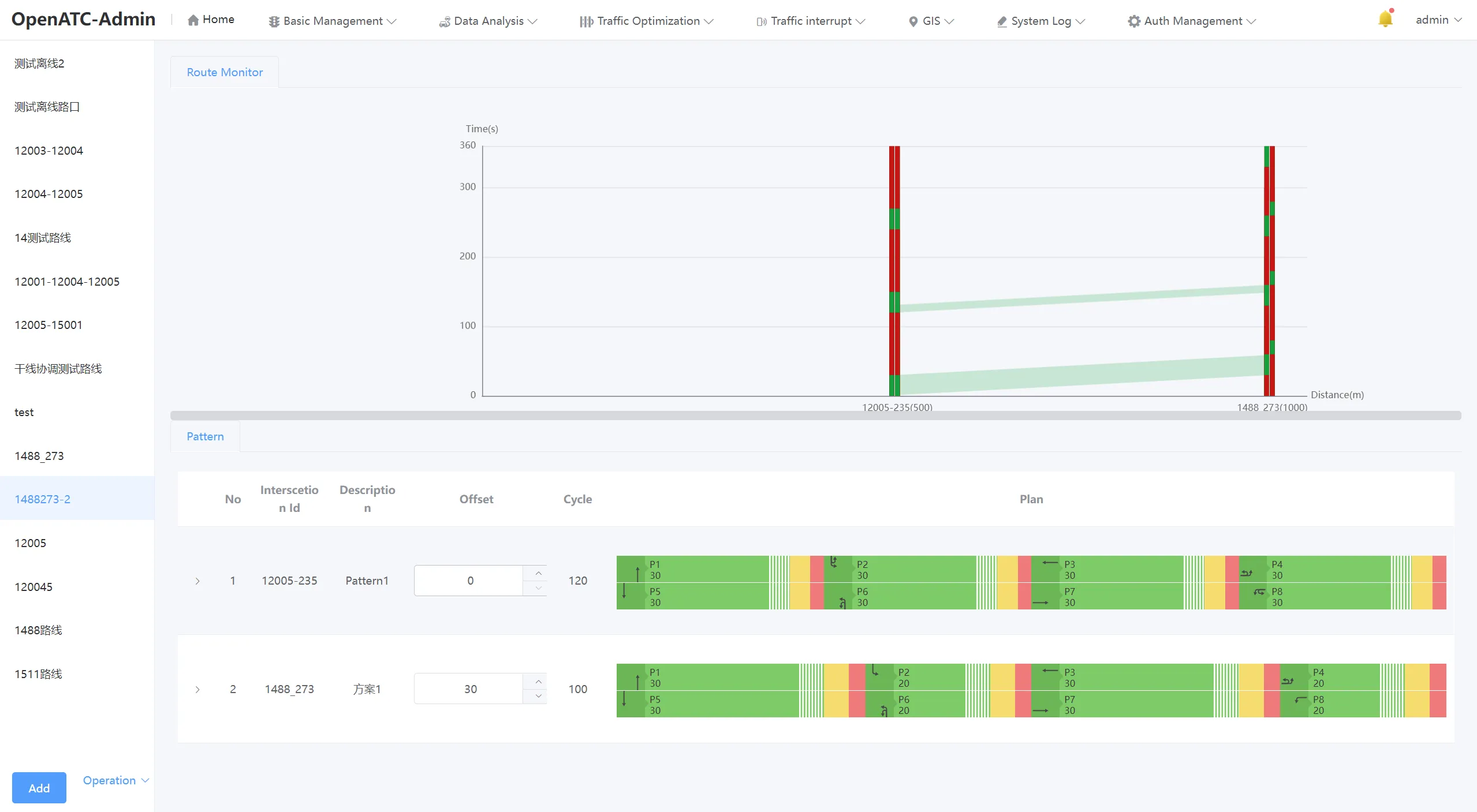
Click on button,expand the green letter ratio information of each intersection equipment plan.
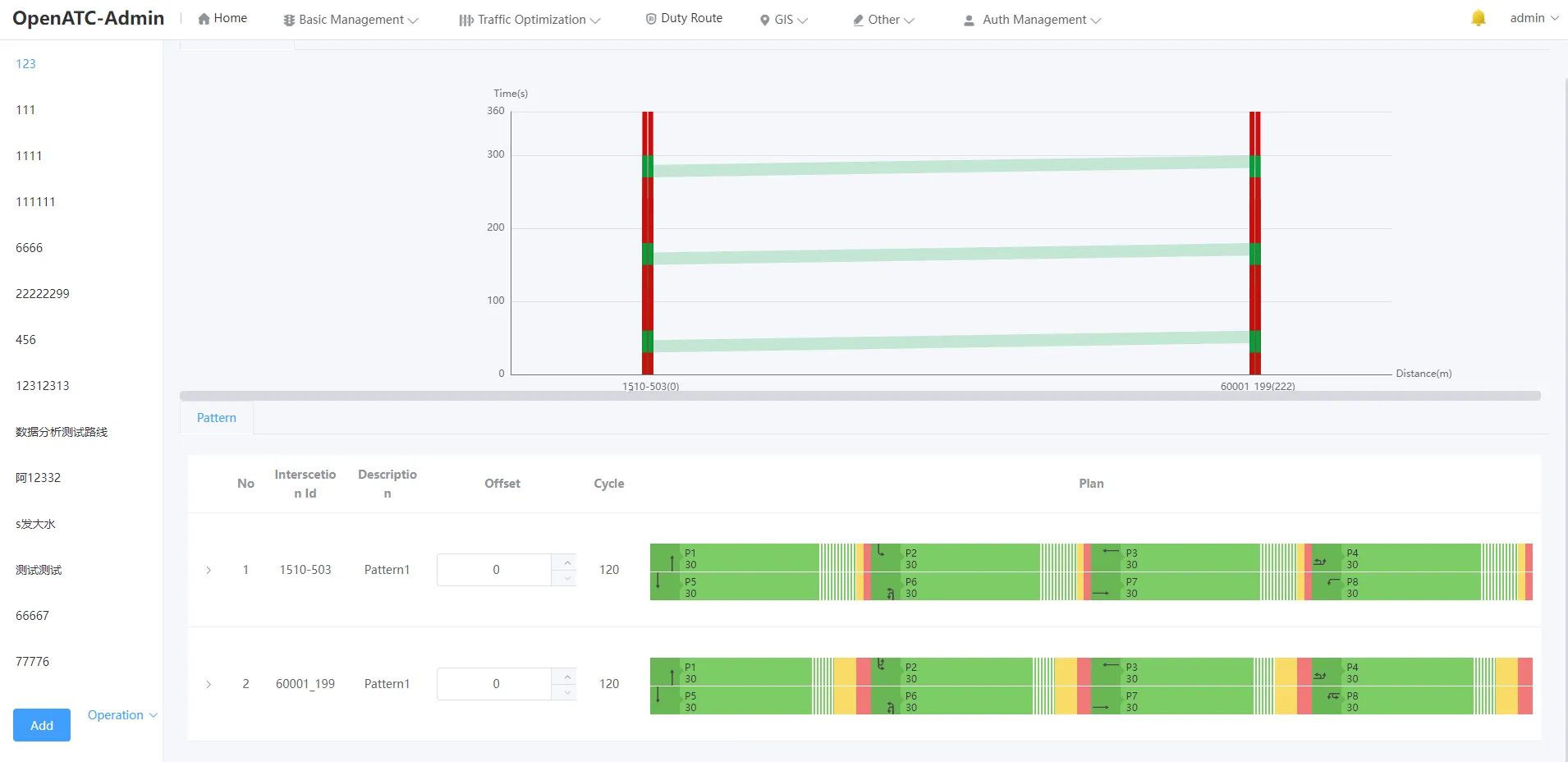
6.1.3 Route Monitor
Select a coordination scheme and view the parameters of the configured time distance map on the trunk real-time monitoring interface.

6.2 Route Management
In the bottom left of the route management interface, you can add, modify, edit and delete coordination schemes.
6.2.1 Add Route
At the bottom left of the route management interface, click "Add" to bring up the New Coordination Scheme dialog box, enter the coordination scheme name, and click the "OK" button.
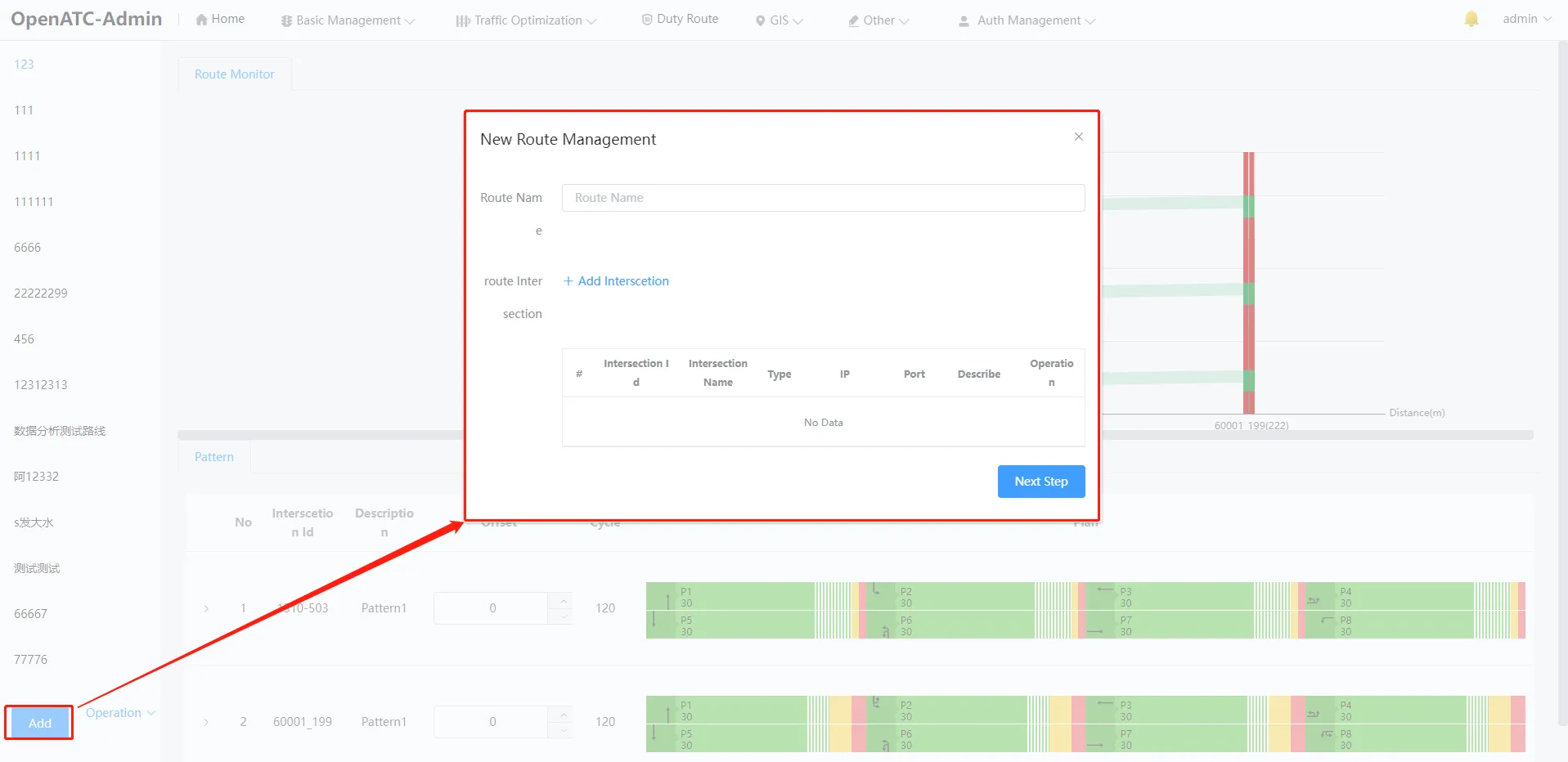
(1) Add Intersection
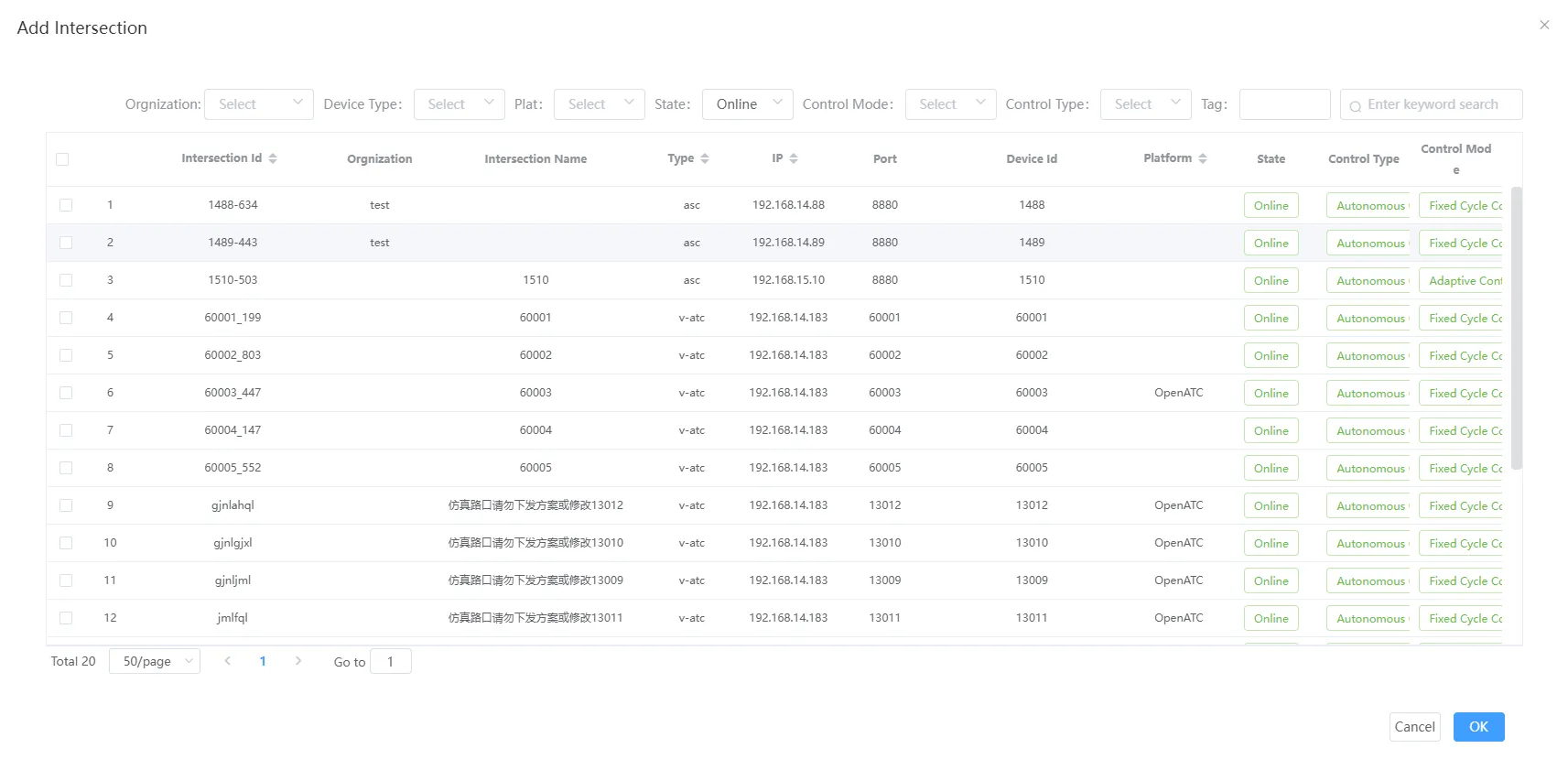
Click the "Add Intersection" button to pop up the Add Intersection dialog box, select the intersection that needs to be added, and OK. Multiple intersections can be added at the same time.
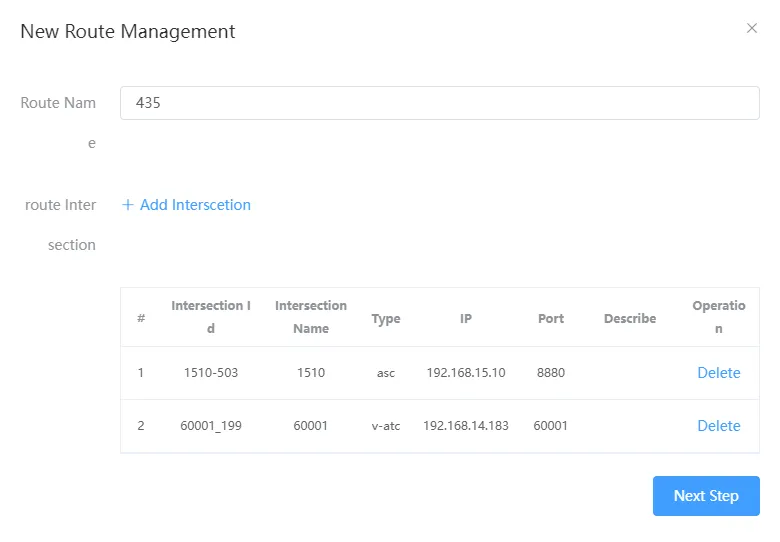
After adding the intersection, click "Next" to set the phase.
(2) Set the Phase
It can be associated with the phase numbers of different intersections up and down. You can select the desired phase in the upper and lower lists.
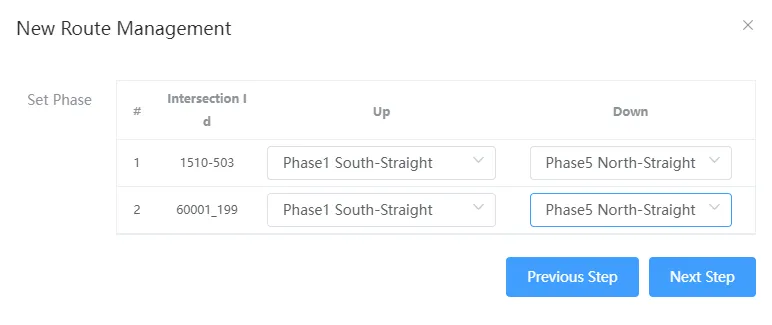
After setting the phase, click "Next" to set the distance, or go back to the previous step and edit again.
(3) Set the Distance
You can set the distance and width between different intersections. Distance is the horizontal distance to the previous intersection, and width is the width of the road in the coordinated direction.
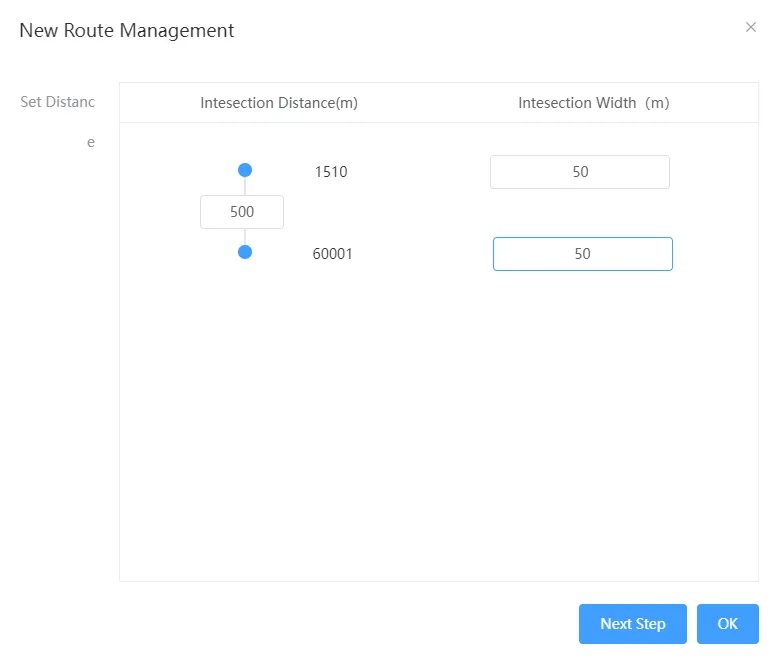
Once set, click OK to view the route's information in the route list.
6.2.2 Edit Route
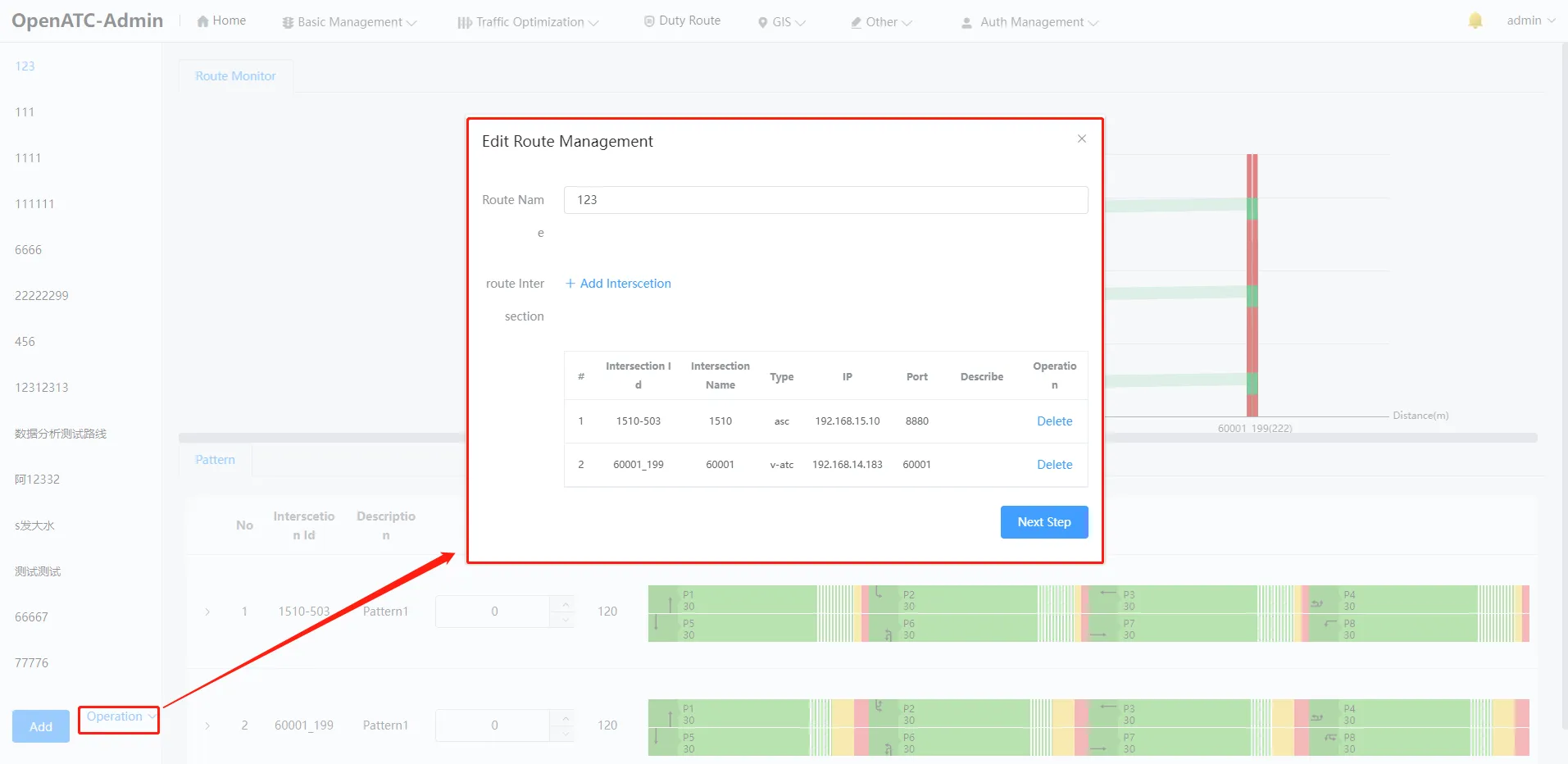
In the lower left part of the route management interface, click "Operation-Edit" to pop up the dialog box for editing and coordinating plans.
6.2.3 Delete Route
Click "Operation-Delete" in the lower left corner of the route management interface to delete the scheme.