7. Route Optimize
7.1 Function Description
Click "Traffic Optizization-Route Optimize" in the menu bar to enter the corresponding interface to view detailed information such as management coordination route, time distance map, and intersection plan.
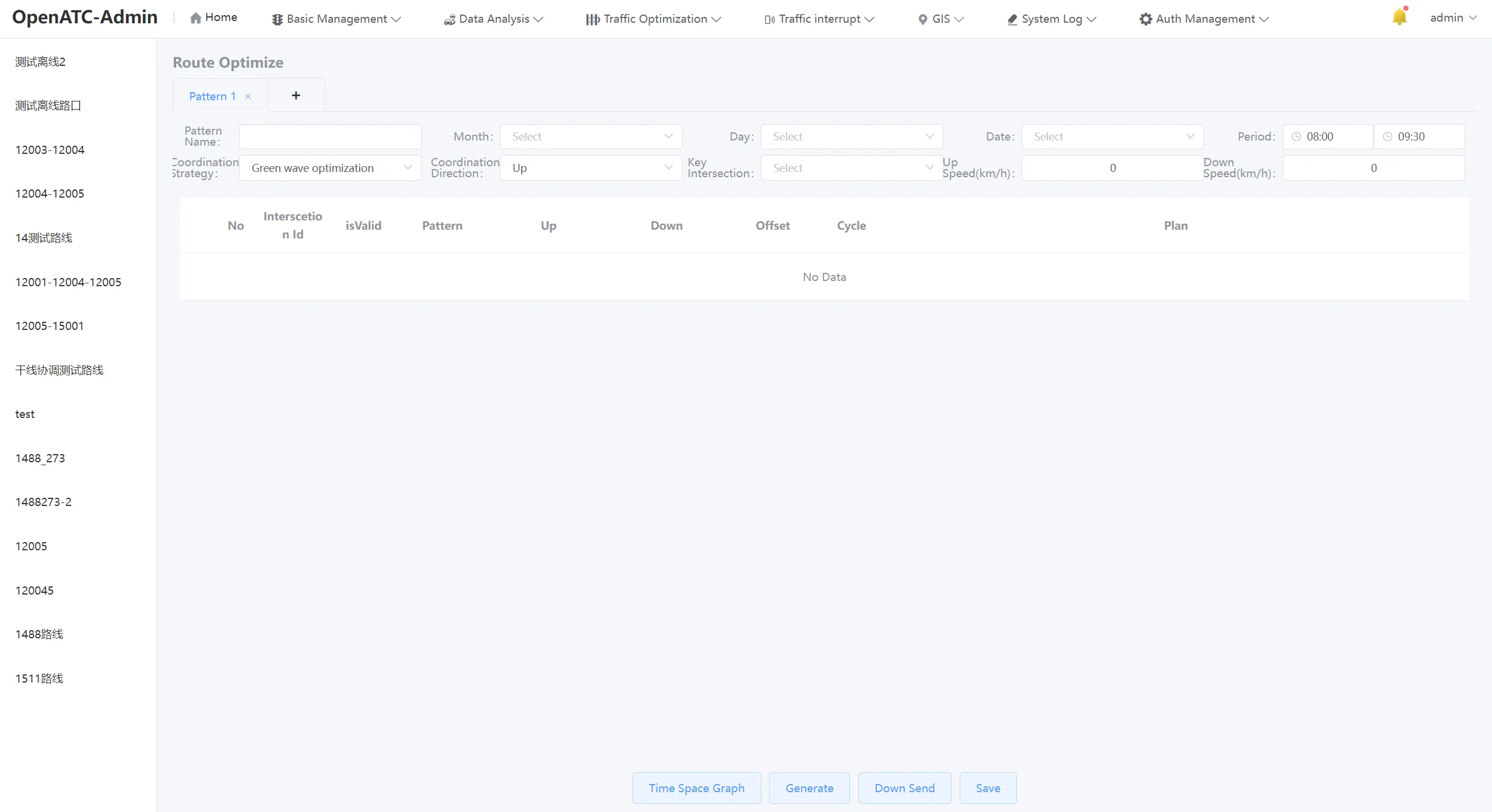
7.2 Route Optimize scheme
On the left side of the route management interface, the current coordination scheme is displayed, click a specific plan to view the intersections, plans and coordination strategies involved in the route.
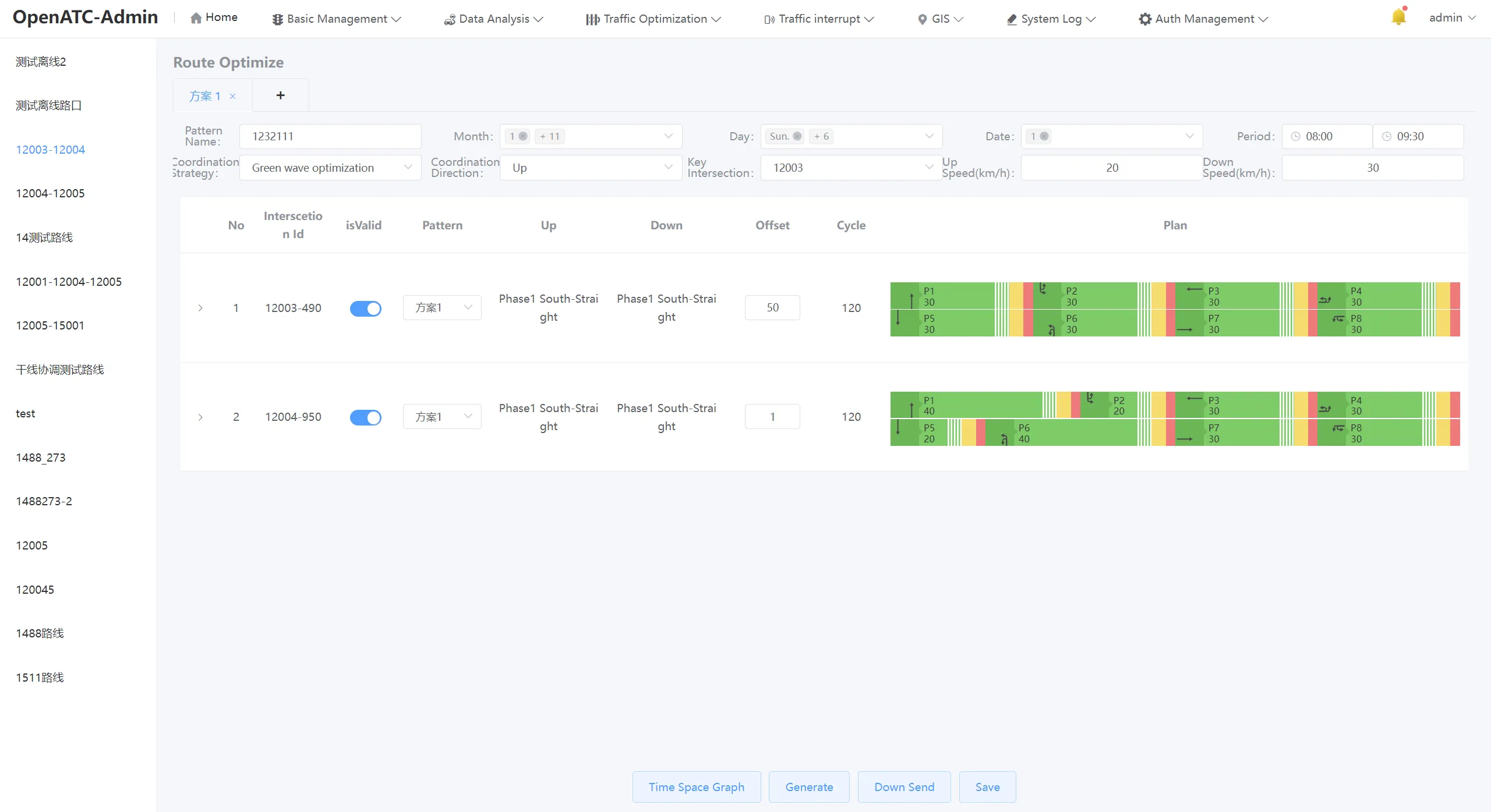
Click "+" above to add a new trunk coordination scheme.
You can enter or select parameter information related to the route, including: plan name, month, week, date, time period, coordination strategy, coordination direction, key intersections, uplink speed (km/h), and downward speed (km/h).
Related settings:
-
Coordination strategy: the coordination scheme adopted for signal timing, the system automatically defaults to green wave optimization, and can also choose red wave optimization or motorcade-end;
-
Coordination direction: You can choose up, down or two-way, upward refers to the direction coordination from the end of the road to the starting point, downward refers to the direction coordination from the beginning of the road to the end point, and the two-way route refers to the direction coordination from the beginning of the road to the end point and the end point to the starting point;
-
Critical intersection: Select an intersection as a critical intersection in order to determine the signal period;
-
Upward speed: the speed at which the vehicle travels in the direction of the road from the end of the road to the starting point, unit: km/h;
-
Downward speed: the speed at which the vehicle travels in the direction of the road from the beginning to the end of the road, unit: km/h;
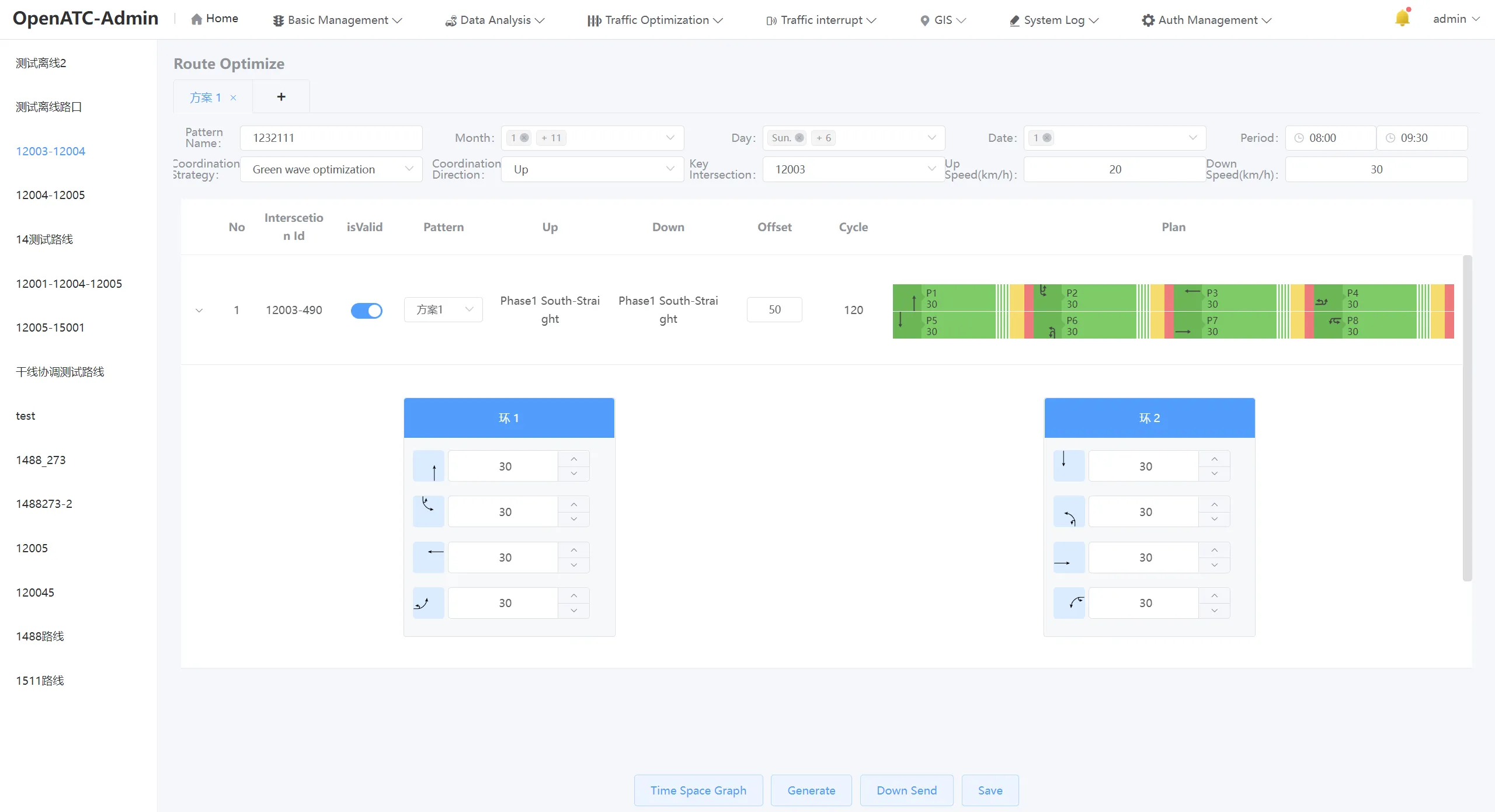
The Scheme Parameters interface can view and edit the scheme information for each intersection. The interface displays the intersection ID, description, phase difference, period, and scheme of the existing coordination scheme. You can choose whether to enable the coordinated route.
Click button to expand the green signal ratio information of each intersection scheme.
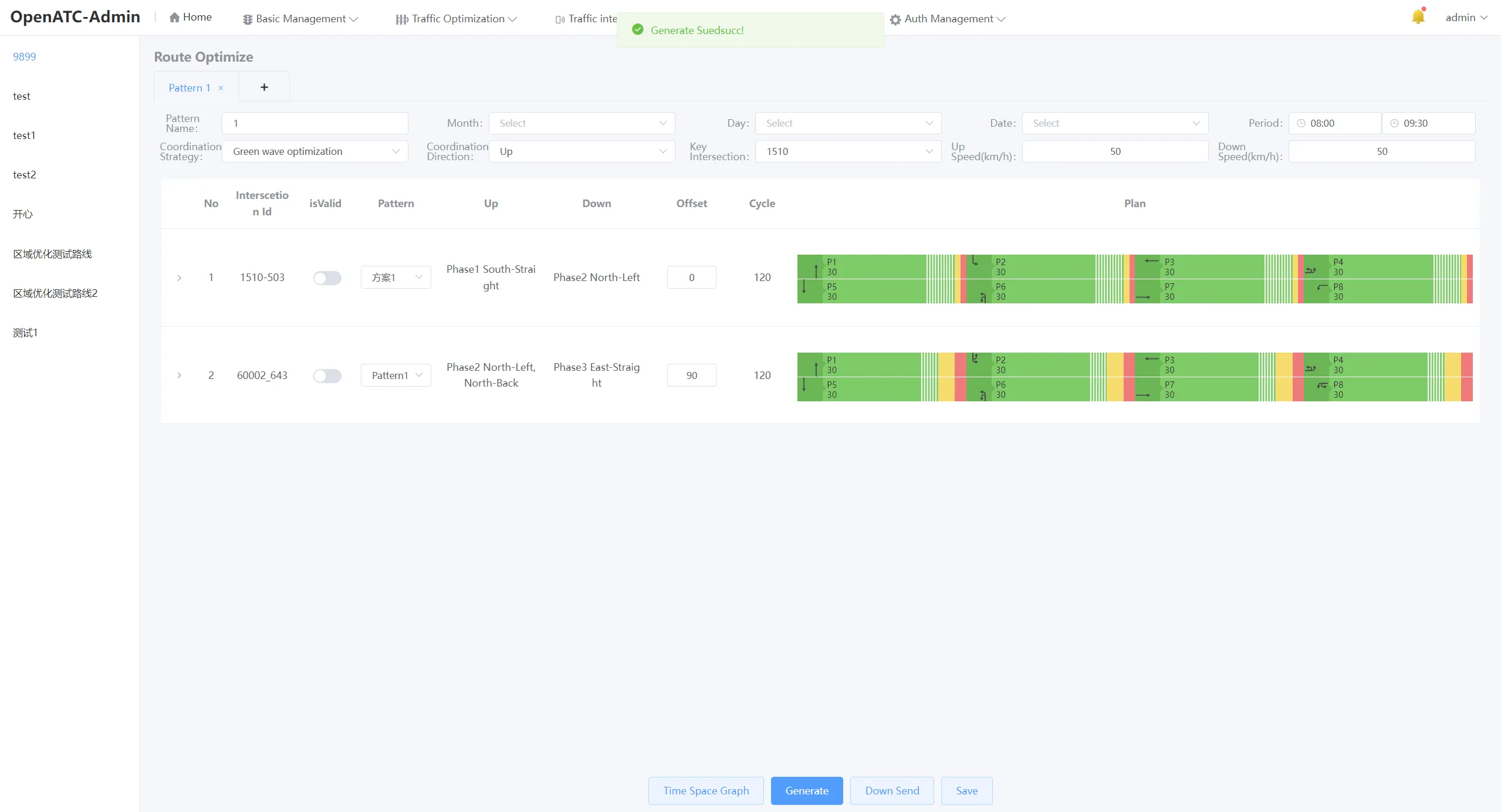
Click the "Generate" button to automatically generate the coordinated phase difference of each intersection.
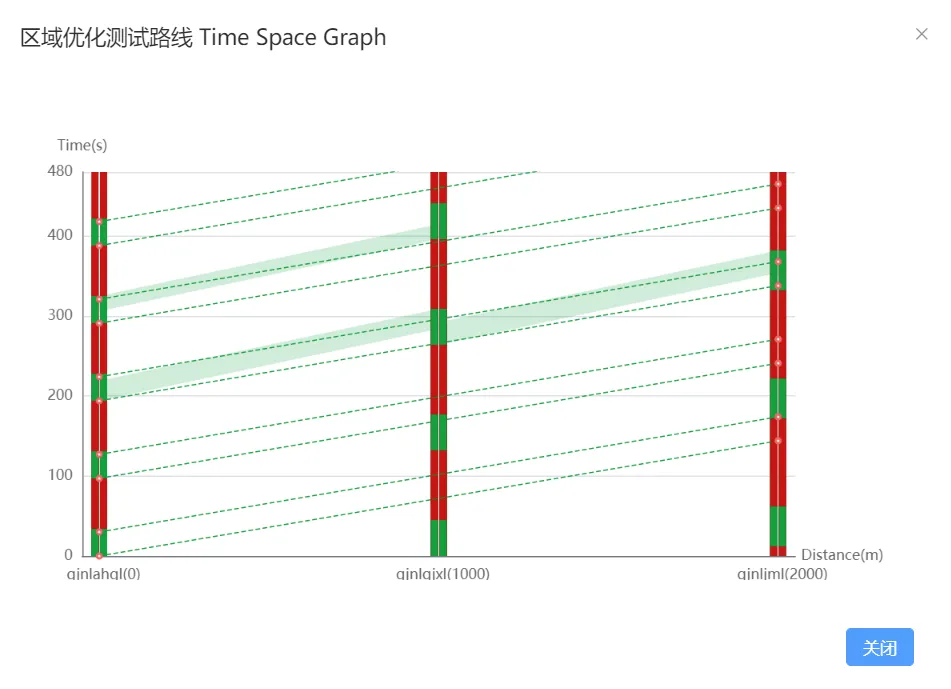
Click the "Time Distance Map" button to view the real-time time distance map.
Click the "Save" and "Issue" buttons to save and distribute the coordination plan to the signal machine.